One of the most basic requirement while creating node js web applications is to send and receive data between HTML client and Nodejs server pages. This blog post shows how can we send data from HTML forms using javascript to node.js server and receive the response.
There can be multiple ways to achieve the above-mentioned task. My post explains this communication with one simple example. In this example, we have one HTML form with username and password. Once the user submits the form data, it goes to node.js server and response is send back to HTML page about the status of the user.
To begin with, we need to have node.js installed on the workstation to start coding. Download link to node.js is shared below:
Node.js - https://nodejs.org/en/
We can use open source editors like sublime, atom or visual studio code for writing our codes. Download links for them are shared below:
Atom - https://atom.io/
Sublime - https://www.sublimetext.com/3
Visual Studio Code - https://code.visualstudio.com/
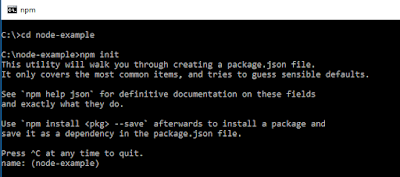
Once we are done with the setup, we start by initializing our project. Navigate to command prompt and change directory to the project folder. Please refer screenshot below for node project initialize command.


There can be multiple ways to achieve the above-mentioned task. My post explains this communication with one simple example. In this example, we have one HTML form with username and password. Once the user submits the form data, it goes to node.js server and response is send back to HTML page about the status of the user.
To begin with, we need to have node.js installed on the workstation to start coding. Download link to node.js is shared below:
Node.js - https://nodejs.org/en/
We can use open source editors like sublime, atom or visual studio code for writing our codes. Download links for them are shared below:
Atom - https://atom.io/
Sublime - https://www.sublimetext.com/3
Visual Studio Code - https://code.visualstudio.com/
Once we are done with the setup, we start by initializing our project. Navigate to command prompt and change directory to the project folder. Please refer screenshot below for node project initialize command.

Once "npm init" command is executed on command prompt you will set up your project by entering all the required fields as shown below:

After the execution is complete, we can see a "package.json" file which stored all the information. Also keep a note of entry point "index.js" file as shown above. The main purpose of "package.json" file is to document for what packages your project depends on. It also makes our build reproducible which means, if we share our code with other developers it is easier for them to load dependencies and run the project easily.
To use the express server, we will install it in our current project. Any dependency required in the project is installed with npm command. In this example, we will install express using "npm install express" command.

As mentioned in the initialize project configuration, we can create our index.js file.
index.js
This file acts as main launch file for the node js web application. This file would be listening to a port which will act as a server.
var express = require('express');
var app = express();
app.use(express.static('public'));

//Routes
app.use(require('./routes'));  //http://localhost:8000/    http://localhost:8000/login
var server = app.listen(8000, function () {
  var host = server.address().address
  var port = server.address().port
  console.log("Example app listening at http:// ", host, port);
});
One very important thing apart from listening to port is "Routes" in the index.js file. We create a routes file and define the behavior of our web application navigation in this file. Lets us have a look at our routes.js file below:
routes.js
The first route defined in the below file is for the index.html file. The index.html file is main launch file which is connected or mapped to the root of the application. The second route which is "/login" route will be used as POST URL from javascript in our HTML file. As shown below, we are also having a new dependency which we need to install with the command "npm install body-parser". body-parser gives you a middleware which uses the incoming request data to await the full, raw contents of the request body before "parsing it". "body-parser" extracts the entire body portion of an incoming request stream and exposes it on req.body as something easier to interface with.
var express = require('express');
var router = express.Router();
var path = require('path');
var bodyParser = require('body-parser')
var urlencodedParser = bodyParser.urlencoded({ extended: false })


// Define the home page route
router.get('/', function(req, res) {
  res.sendFile(path.join(__dirname +'/index.html'));
});


// Define the login route
router.post('/login',urlencodedParser, function(req, res)
{
     if (!req.body)
     return res.sendStatus(400);

     console.log("userid -> ",req.body.userid)
     console.log("password -> ",req.body.pwd)

     // we can connect and validate username and password from database
     // this project example does not include scope for database connection
     // here we will try to send static values from node.js to html and see response on client side
     var userstatus = false;

     res.setHeader('Content-Type', 'application/json')
     res.end('{"userexist": '+userstatus+'}'); // userstatus is send to html client as response from node.js

});

module.exports = router;
The main client file which is connecting to the node.js server code is index.html. This file acts as the entry point of the application and loads a view to interact with the server.
index.html
The code below is used to render HTMLform which is sending data to the node.js code. The most important part in the code below in script tag which contains the javascript which is used for communication.
As shown, jQuery ajax call is made with POST method to connect to node route "http://localhost:8000/login" . The 'data' property is used to send the data to node.js server in JSON object format.
<!DOCTYPE html>
<html>
<head>
  <title>New Website</title>

  <link rel="stylesheet" href="https://maxcdn.bootstrapcdn.com/bootstrap/3.3.7/css/bootstrap.min.css">
  <script src="https://ajax.googleapis.com/ajax/libs/jquery/3.1.1/jquery.min.js"></script>
  <script src="https://maxcdn.bootstrapcdn.com/bootstrap/3.3.7/js/bootstrap.min.js"></script>
  <link rel="stylesheet" href="css/style.css">

</head>

<body>


<div class = "container">
  <div class="wrapper">
    <form  method="post" name="Login_Form" class="form-signin" id="form.login" action="/login" >
        <h3 class="form-signin-heading">Welcome ! Please Sign In</h3>
        <hr class="colorgraph"><br>

        <input type="text" class="form-control" name="InputUsername" id="InputUsername" placeholder="Username"  required="" autofocus="" />
        <input type="password" class="form-control" name="InputPassword" id="InputPassword" placeholder="Password"  required=""/>

        <button class="btn btn-sm btn-primary btn-block"  id="SubmitBtn" value="sendData" type="button" >login</button> </br>

        <div id="select_link"  style="display:none ">
          <h6> You are not registered user. <a href="/signup">Click here </a> to signup.</h6>
        </div>
    </form>
  </div>


<script type="text/javascript">
    $(document).ready(function(){
    $("#SubmitBtn").on("click",function(){
       //reading form data to send information to node.js
       var userid =$("#InputUsername").val();
       var pwd =$("#InputPassword").val();

       //send data as POST to node url defined in node routes
        $.ajax({
        type: 'POST',
        url: 'http://localhost:8000/login',
        data: {"userid":userid,"pwd":pwd},
        //success function executes once communication with node.js is complete and we receive response from node as data params
        success: function (data) {
            var receivedData = data;
            if (receivedData.userexist == false) {
              $("#select_link").show()
            }
        },
        error: function (xhr, status, error) {
            console.log('Error: ' + error.message);
            console.log('Error connecting to the server.');
        }
        });
    });
  });
  </script>

</div>
</body>
</html>
The complete working example of this communication can be seen in video below:
Download completed project files - Click here
-Nitin


